Guide
Plan your trip like a pro
Two skills that make any activity post better: letting AI help you plan the trip, and showing people exactly where you're going on a map.
You don't need to be a travel agent to post a great trip. This guide shows you how to use a free AI assistant to think through the details, and how to draw your route on Google Maps so you can add a picture of it to your post. Take your time — you can do all of this before you write a single word on Roamies.
1 Use ChatGPT to plan the trip
Free, takes about ten minutes, and does the boring thinking for you.
Go to chatgpt.com in your browser. You can use it free — you'll be asked to create an account with an email address, which takes a minute.
Type your idea in plain language. The more you tell it, the better the answer. Here's a prompt you can copy and change to fit your trip:
You're having a conversation, not filling in a form. Once it answers, keep going:
• "Day 3 looks too long — can you shorten it?"
• "What would this cost per person, roughly?"
• "Suggest somewhere to eat near the second overnight stop."
• "Write me a short, friendly description of this trip for a post."
This is the part that saves you the most time. Try:
2 Draw your route on Google Maps
So people can see exactly where the trip goes.
Go to google.com/maps. Click the blue Directions button (the arrow icon) near the search box.
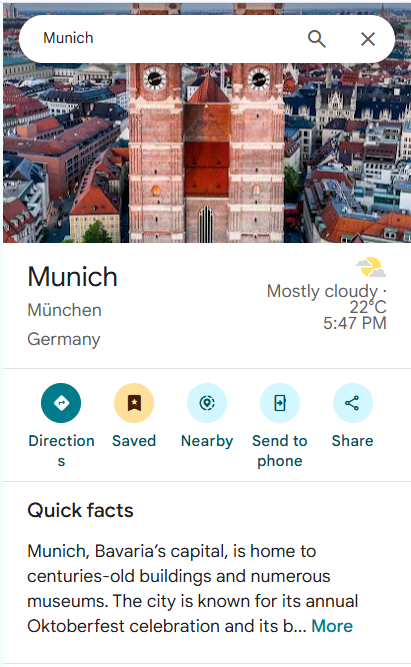
At the top you'll see small icons — car, motorcycle, walking, cycling, public transport. Pick the one that matches your trip. This changes the route Maps suggests, so it matters.
Type where you're starting in the first box, and where you're finishing in the second. Maps will draw a route between them.
This is the important bit. Left to itself, Maps picks the fastest way between two points — usually the motorway, not the road you actually want to ride or walk.
To force your real route, add the places in between as stops. Click "Add destination" below the second box, and enter the next place. Repeat for each one.
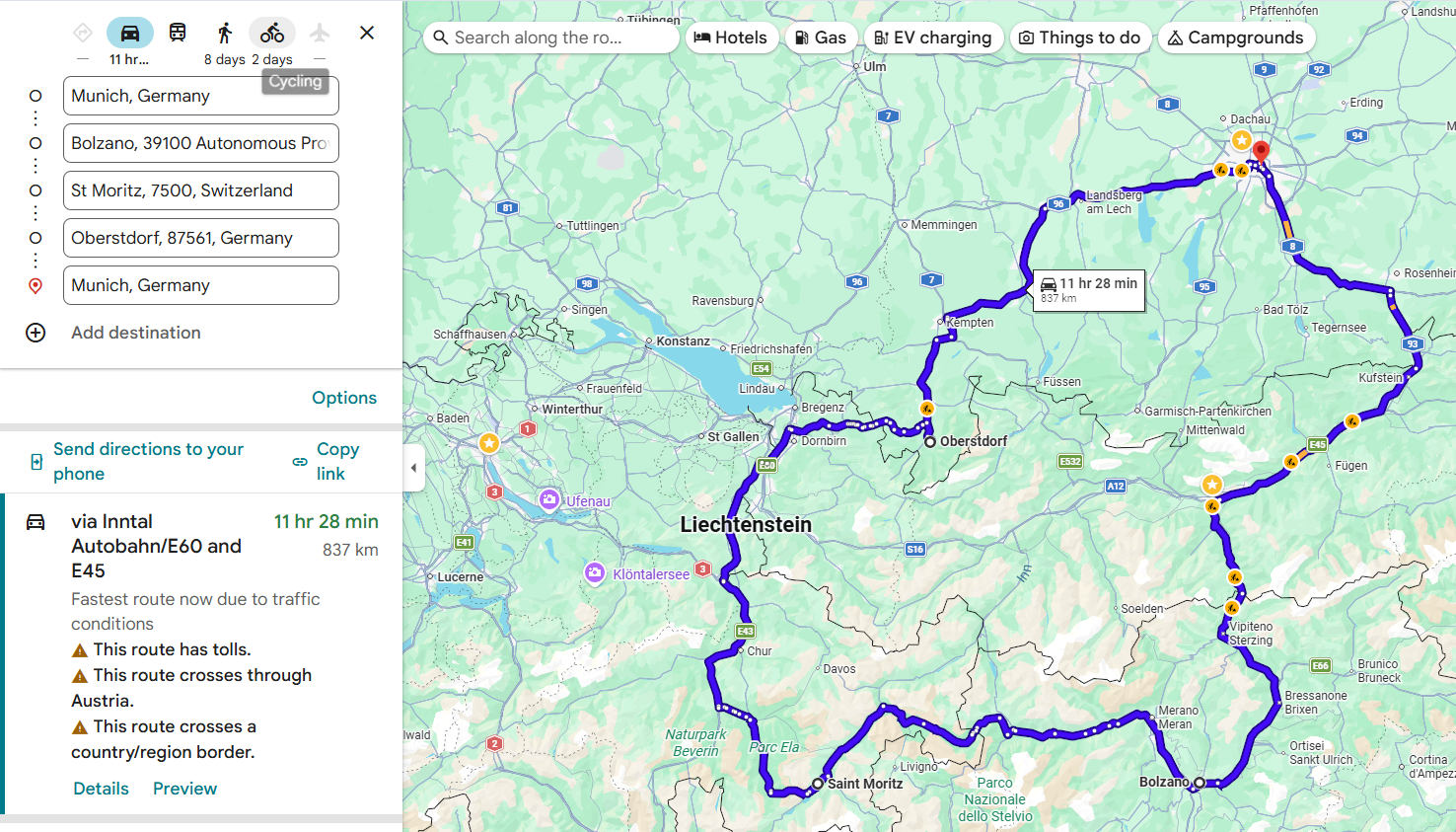
A real example: Munich → Bolzano → St Moritz → Oberstdorf → back to Munich. Each stop in that list pins the route to the roads you actually want — without them, Maps would send you straight down the motorway.
Before you screenshot it, make the map show what you want people to see:
• Zoom in or out so the whole route fits comfortably on screen
• Drag the map so the route sits nicely in the middle
• If the side panel is in the way, click the small arrow on its edge to collapse it
Windows: press Windows key + Shift + S, then drag a box around the map. The picture is copied — open Paint, press Ctrl+V, and save it. (Or press Windows key + Print Screen to save the whole screen straight to your Pictures folder.)
Mac: press Cmd + Shift + 4, then drag a box around the map. The image saves to your desktop.
Phone: the usual screenshot buttons for your phone (usually power + volume down), then crop the picture in your photo app.
3 Put it in your activity post
You've done the hard part — this bit takes two minutes.
Only four things are actually required: a title, the activity type, the city or area, and how many spots you have. Everything else is optional — fill in what you like and leave the rest.
Drop in the description ChatGPT wrote for you, and edit it so it sounds like you. Add the Google Maps link if you copied it.
In the Photos field, upload the map picture you saved. A post with a route map gets far more interest than one without.
Ready to post your trip?
You've planned it and mapped it — now find the people to share it with.
Post an activity →